
4 easy steps to exporting stems in Pro Tools for Professional Online Mixing and Mastering Services.
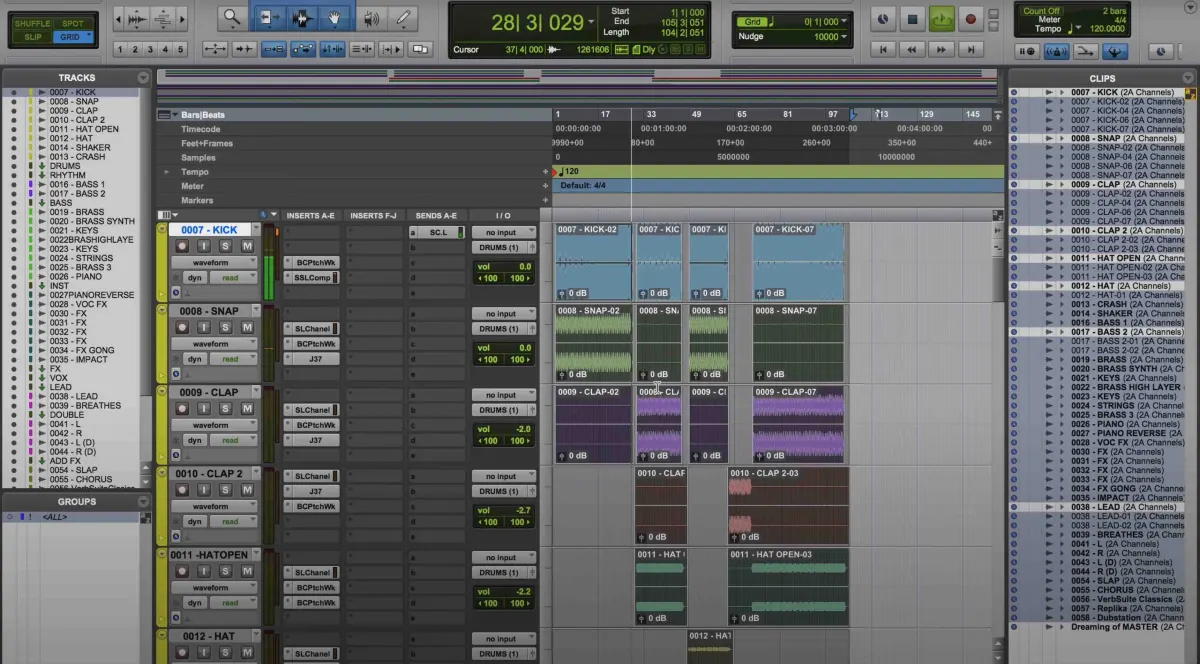
- Highlight all tracks from the end to the beginning (as seen in picture below)
- Choose Edit at the top menu
- Consolidate Clip
- Keep all tracks selected and hit shortcut on your keyboard for Mac: Shift + Command + K and for Windows: Control + Shift + K to export stems.
Use these settings:
- File Type: WAV
- Format: Interleaved
- Bit Depth: 24 Bit
- Sample Rate: 44.1khz
- Prompting for each duplicate
Choose your destination and name your files accordingly.
After exporting your stems you can then upload your zip file here at Audiomixingmastering.com/upload for professional online mixing and mastering services for an affordable rate.
Listen to our before and after samples here at Audiomixingmastering.com/samples to hear the difference for yourself.
Stems Done Right
Pro Tools makes stem delivery painless once routing is set, and tidy stems are the universal language of mixing services, consistent lengths, printed effects where intended, and a reference bounce alongside.